Physical Address
304 North Cardinal St.
Dorchester Center, MA 02124
Physical Address
304 North Cardinal St.
Dorchester Center, MA 02124
![6 Ways To Fix Copy Paste Not Working in Windows 10 [2023]](https://technukti.net/wp-content/uploads/2023/10/copy.jpg)
Table of Contents
Copy and paste are fundamental functions that we use daily on our Windows 10 computers. However, if you’ve encountered a situation where copy-paste is not working as it should, you’re not alone. This article will explore six effective ways to fix copy-paste issues on your Windows 10 machine in 2023.
Before delving into the solutions, it’s important to understand the common issues related to copy-paste not working in Windows 10:
Now, let’s get to the solutions.
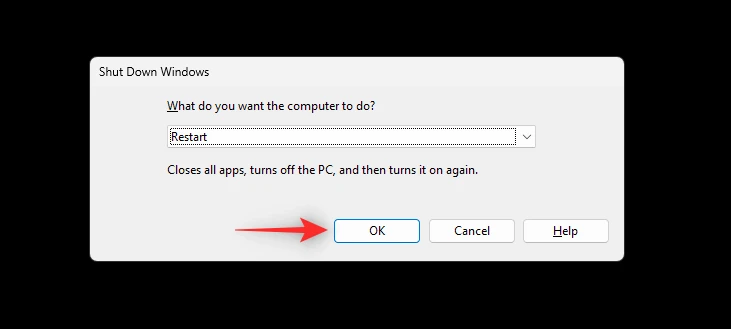
Sometimes, the simplest solution is the most effective. Restarting your computer can help resolve many issues, including copy-paste problems. Here’s how to do it:
Once your computer restarts, try using the copy-paste function again.
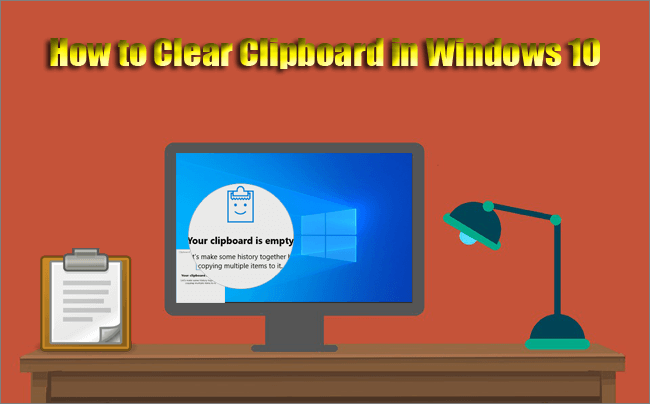
Windows 10 introduced the clipboard history feature, which can sometimes cause issues. Here’s how to check and manage it:
Now, check if copy-paste is functioning correctly.
Corrupted clipboard cache can lead to copy-paste problems. To clear it, follow these steps:
cmd /c "echo off | clip"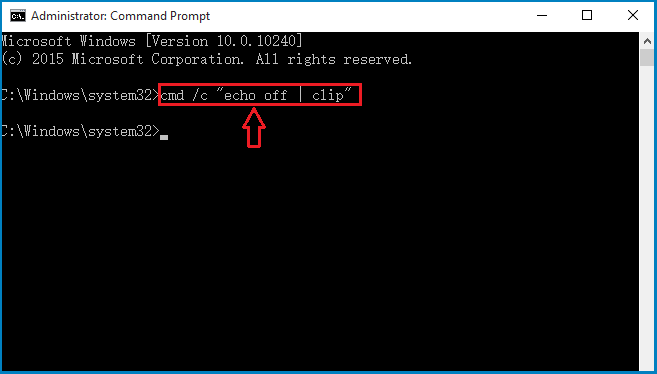
This command will clear the clipboard cache, potentially resolving your issue.
Outdated operating systems can lead to various problems. To update Windows 10:
If updates are available, install them, and restart your computer when prompted.
Corrupt system files can disrupt the copy-paste function. To check for and repair them:
sfc /scannowAfter the process is complete, restart your computer.
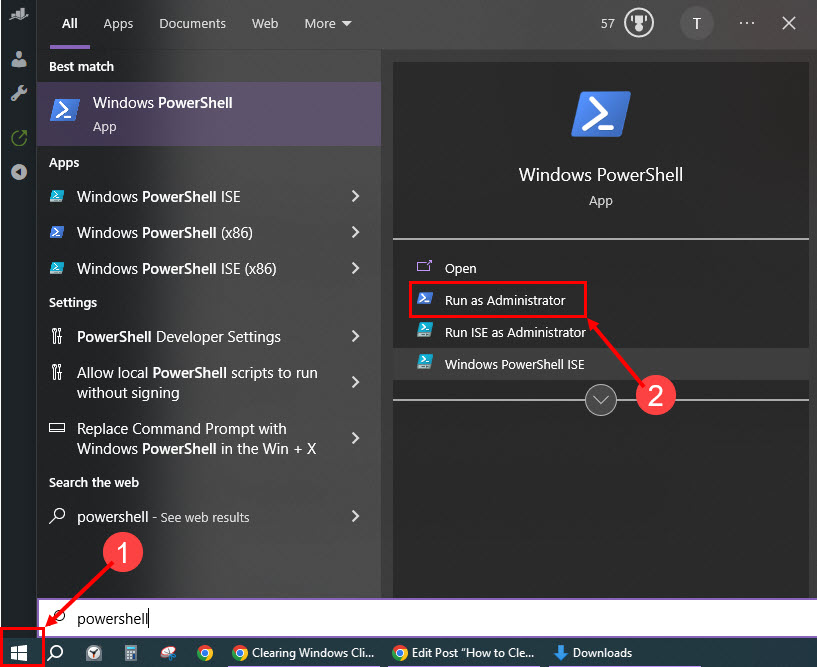
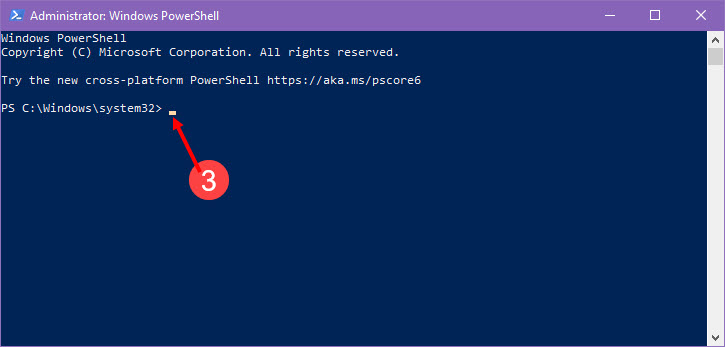
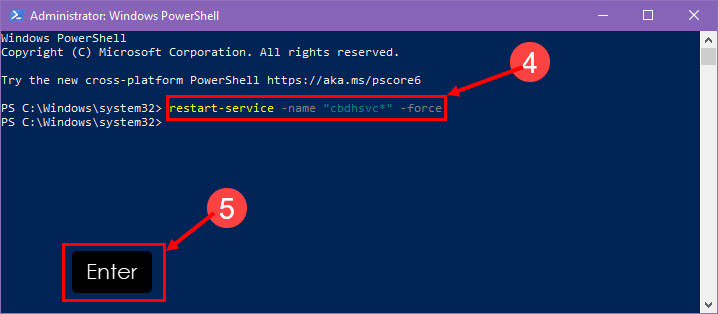
If all else fails, resetting the clipboard service can often resolve stubborn copy-paste issues:
   net stop "cbdhsvc"
   net start "cbdhsvc"
This will stop and then restart the clipboard service.
Now, test your copy-paste function to see if it’s working correctly.
A1: Copy-paste issues in Windows 10 can occur due to various reasons, including clipboard history clutter, corrupted cache, outdated software, and corrupt system files.
A2: If Ctrl+C and Ctrl+V shortcuts don’t work, you can try restarting your computer or using alternative methods mentioned in this article.
A3: Yes, third-party applications can interfere with the copy-paste function. Consider disabling or uninstalling any recently installed software to identify the culprit.
A4: Some methods, such as running the System File Checker or resetting the clipboard service, may require administrative privileges.
A5: It’s always a good practice to back up your important data before making system changes, though most of the methods mentioned here are non-destructive.
Copy-paste not working in Windows 10 can be frustrating, but with the right solutions, you can quickly resolve the issue. In this guide, we’ve explored six effective methods to tackle the problem, from basic restarts to more advanced solutions like clearing the clipboard cache and repairing system files. By following these steps and considering our FAQs, you can regain full functionality of the copy-paste feature on your Windows 10 computer in 2023.
Remember, maintaining an up-to-date and well-maintained system can prevent many of these issues from arising in the first place. So, keep your Windows 10 machine in top shape to enjoy seamless copy-paste functionality.