Physical Address
304 North Cardinal St.
Dorchester Center, MA 02124
Physical Address
304 North Cardinal St.
Dorchester Center, MA 02124
Table of Contents:
In 2023, Windows 10 remains a popular choice among PC users, but its built-in security features, such as Smartscreen Filters, can sometimes be more of a hindrance than a help. In this guide, we will walk you through the process of disabling Smartscreen Filters on your Windows 10 PC. This step-by-step tutorial will give you more control over your system’s security settings while ensuring a smoother user experience.
Before we delve into the steps to disable Smartscreen Filters, let’s understand what Smartscreen Filters are and why they exist. Smartscreen is a security feature in Windows that helps protect your PC by checking files and websites against a constantly updated list of known threats. While this feature can be useful, it can also be overly cautious and may block legitimate apps and files, leading many users to seek ways to disable it.
There are several reasons why you might want to disable Smartscreen Filters on your Windows 10 PC:
Now, let’s get into the step-by-step process of disabling Smartscreen Filters.
The first step is to access the Windows Security settings. Follow these steps:
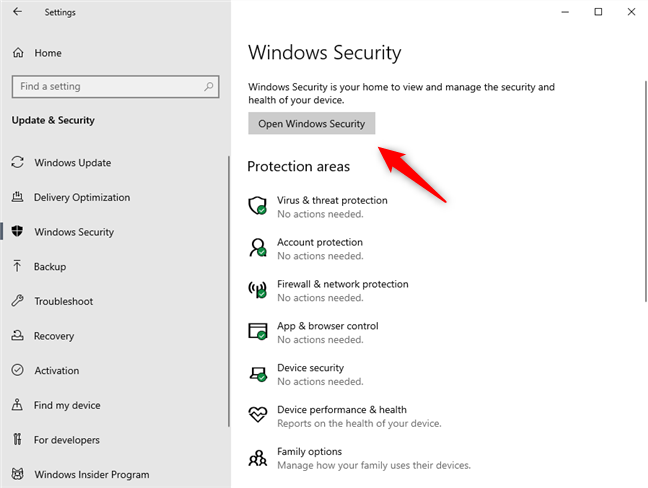
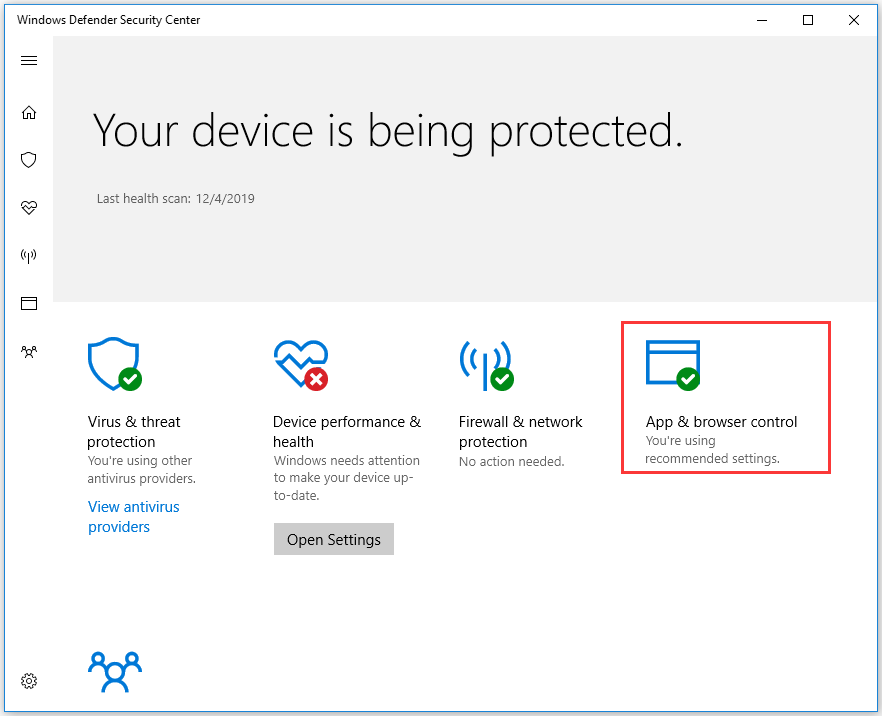
Now that you’re in the Windows Security settings, you’ll need to locate the Smartscreen Filter. Here’s what to do:

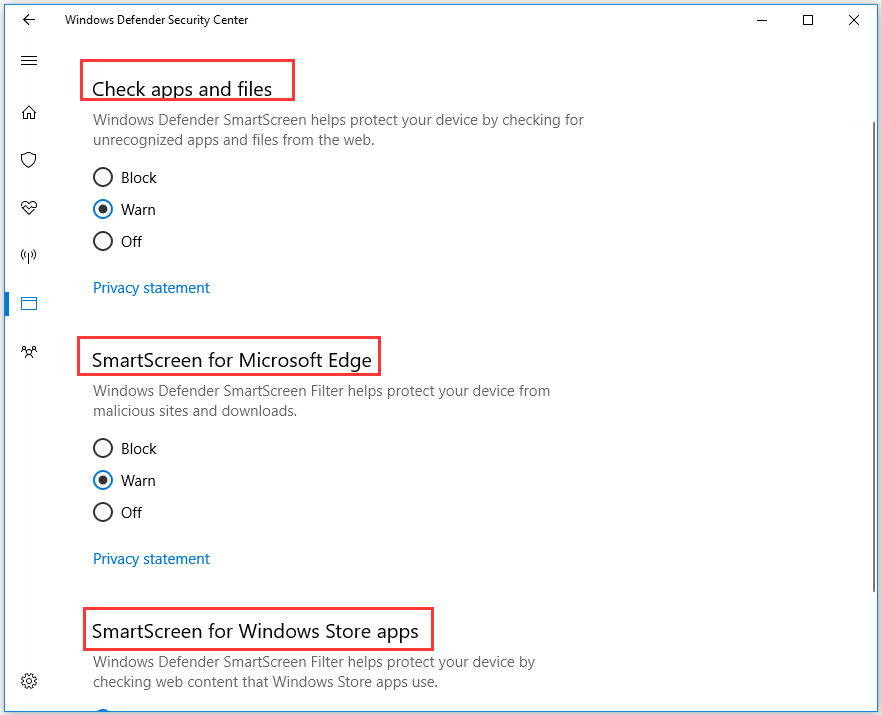
In this step, you’ll disable Smartscreen Filters for apps and files. Follow these steps:
If you use Microsoft Edge as your web browser, Smartscreen Filters are also active there. To disable it, follow these steps:
To ensure that your changes have taken effect, it’s a good idea to verify and finalize them. Here’s what you need to do:
A1: Disabling Smartscreen Filters can be safe if you practice caution when downloading files and browsing the internet. It gives you more control over your system’s security, but it also places more responsibility on you to identify potential threats.
A2: Yes, you can re-enable Smartscreen Filters by following the same steps mentioned earlier, but choosing the “Warn” or “Block” option instead of “Off.”
A3: Yes, there are various third-party antivirus and anti-malware software options available that can offer robust protection in place of or in conjunction with Smartscreen Filters.
A4: No, disabling Smartscreen Filters will not impact the overall protection provided by Windows Defender. You’ll still have real-time protection against viruses and other threats.
A5: It’s advisable to discuss this with other users of the computer. If you’re the primary user and have concerns about false positives, you can disable it, but make sure all users are aware of the change.
Disabling Smartscreen Filters on your Windows 10 PC is a choice that many users make to gain more control over their system’s security. While the feature has its advantages, it can sometimes be overly cautious and block safe content. By following the steps outlined in this guide, you can customize your security settings to better suit your needs, ensuring a smoother and more personalized computing experience. Remember to exercise caution when downloading files or visiting websites to maintain your PC’s security.