Physical Address
304 North Cardinal St.
Dorchester Center, MA 02124
Physical Address
304 North Cardinal St.
Dorchester Center, MA 02124

Table of Contents
Google Chrome is one of the most popular web browsers in the world, and it comes equipped with a range of features designed to enhance your browsing experience. One such feature is the ability to download files from the internet, making it convenient to access documents, images, videos, and more. Over time, your download history can become cluttered, and you may want to learn how to manage and clean it up effectively.
In this guide, we will walk you through the process of viewing and deleting your Google Chrome download history in 2023. Whether you want to maintain a tidy record of your downloads or simply improve your browser’s performance, this article will provide you with step-by-step instructions and tips to accomplish your goals.
Before we dive into the specifics of viewing and deleting your download history in Google Chrome, it’s essential to understand why this feature is significant. Your download history serves several purposes:
With these reasons in mind, let’s explore how to effectively manage your download history in Google Chrome.
The first step in viewing your download history is to open Google Chrome. If you haven’t already, make sure your browser is up to date. Here’s how to open Chrome:
Now that Google Chrome is open, follow these steps to access your download history:
Once you’re on the Downloads page, you can browse through your download history. Here, you’ll see a list of the files you’ve downloaded, along with information like the file name, date, and download source.
To find a specific download, you can use the search bar at the top of the page. Type in keywords related to the file you’re looking for, and Chrome will filter the results accordingly. Click on a specific download to open it or access it on your computer.
Now that you know how to view your download history, it’s time to learn how to delete items from it. You can choose to remove individual downloads or clear your entire download history.
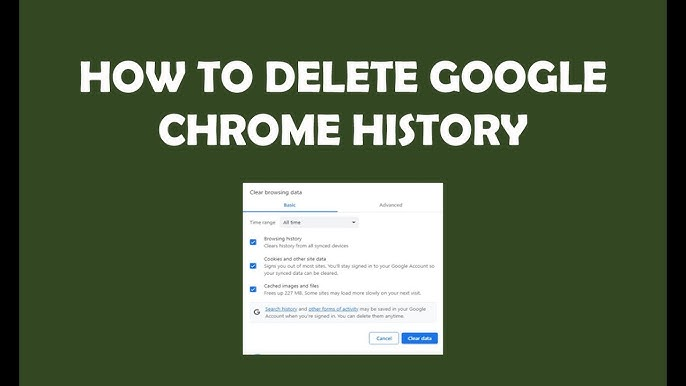
As before, make sure you have Google Chrome open on your computer.
To access the Downloads page, follow the same steps as mentioned earlier:
If you want to delete specific downloads, follow these steps:
The selected download will be deleted from your history, but please note that it won’t be removed from your computer. This action only affects the record in your Chrome history.
If you prefer to wipe your entire download history, follow these steps:
A confirmation dialog will appear, asking if you want to clear your download history. Click “Clear data” to confirm. This action will remove all items from your download history, providing a fresh start.
Please note: Clearing your download history in Chrome won’t delete the actual downloaded files from your computer. It only removes the record of those downloads from your browser’s history.
No, once you delete a download from your Chrome history, it cannot be recovered from within the browser. It’s essential to double-check before removing any items to avoid accidental data loss.
Clearing your download history may have a minor impact on your browser’s performance, particularly if you have an extensive history. However, the effect is usually not substantial. If you’re looking to boost Chrome’s speed, consider other performance-improving measures, such as clearing your browser cache or disabling unnecessary extensions.
Chrome does not provide a built-in feature for automating the deletion of download history. However, you can use browser extensions or third-party software that offer scheduling and automation options for clearing your download history.
Clearing your download history should not significantly impact your browsing experience. It primarily affects the record-keeping aspect, and it won’t remove any bookmarks, saved passwords, or other important browser data. You can clear your download history periodically without worrying about adverse effects on your browsing.
No, clearing your download history is separate from clearing your browsing history. While both actions can be performed in Chrome, they do not affect each other. Clearing your download history does not remove your browsing history, and vice versa.
Managing your Google Chrome download history is a simple but valuable task that can enhance your browsing experience and privacy. By following the steps outlined in this guide, you can easily view and delete your download history as needed.
Remember that your download history serves multiple purposes, including easy access to files, record-keeping, privacy
, and potential performance improvements. Whether you want to keep your downloads organized or ensure your online activities remain private, this guide has provided the information you need to maintain control over your download history in Google Chrome in 2023.
As you navigate the web with Google Chrome, make use of these steps to keep your download history in check and enjoy a cleaner, more efficient browsing experience.